
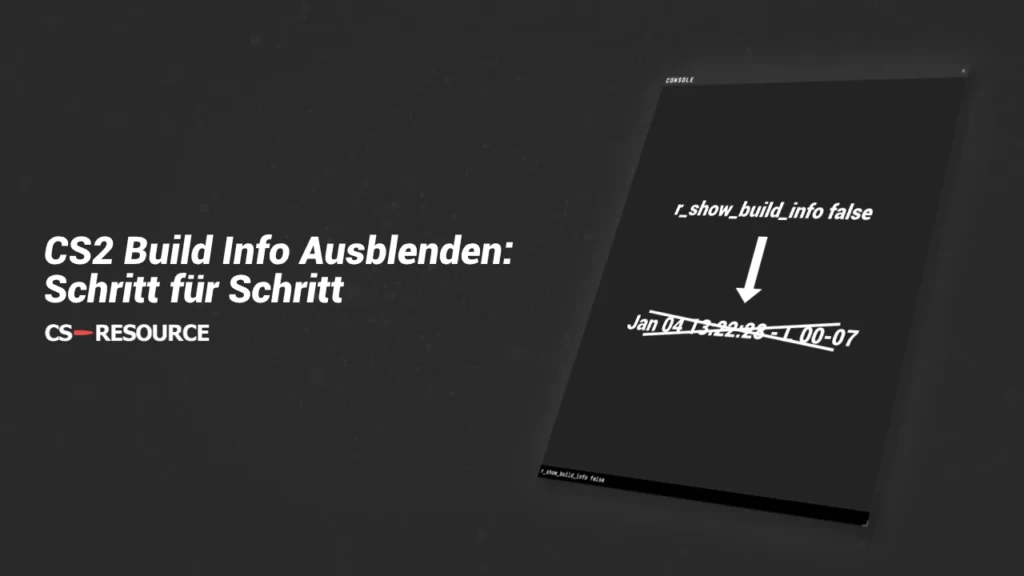
The build info can be displayed in CS2 using the console command r_show_build_info false can be hidden. The command hides the date and the build version.
CS2 Hide build info - step-by-step instructions
Since the release of CS2, the build info of the current version is displayed at the bottom left of the screen. This information is irrelevant for almost all CS2 players, so it can be hidden with a simple console command.
Step-by-step instructions:
- Open settings (in the game, the cogwheel at the top left)
- Activate developer console ("Game" -> "Activate developer console (~)" -> "YES")
- Bind developer console ("Keyboard/Mouse" -> "Open console" -> set any key)
- Open the console (press the specified button)
- Command r_show_build_info false enter and press enter
- Finished
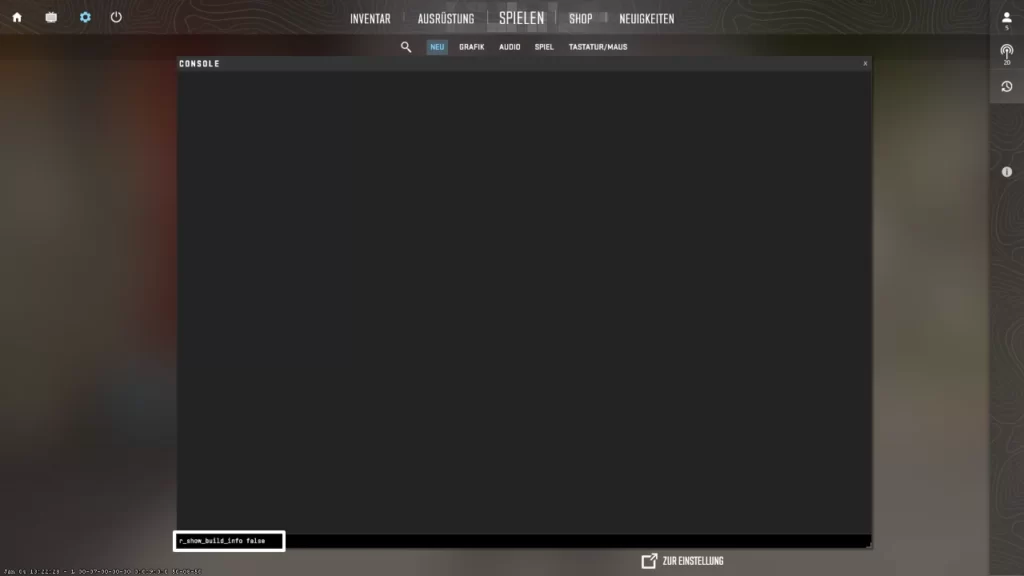
The build info can easily be reactivated using the same command, only the "false" must be replaced with a "true". So to switch on the build info: r_show_build_info true
What does the display at the bottom left in CS2 mean?
The new display (bottom left) in CS2 shows the date when the version being played was built. This means the date on which this CS2 version was completed so that it can be played on the live servers.
What is the build info important for?
The build info is important for Valve when bugs are reported. Using submitted screenshots with bugs and the build info, Valve can see exactly which version has the bug and whether it has already been fixed or is still present in newer versions.
 English
  German
  French
  Spanish
  Russian
  Ukrainian
  Polish
  Swedish
  Turkish
  Portuguese
  Chinese